How to Fix SSH “Connection Refused” and “Permission Denied (publickey)”
Can't SSH into your server? Whether you get "Connection refused" on port 22, a timeout or "Permission denied (publickey)", here's what each error means and how to fix it in a few minutes, even when you're locked out.
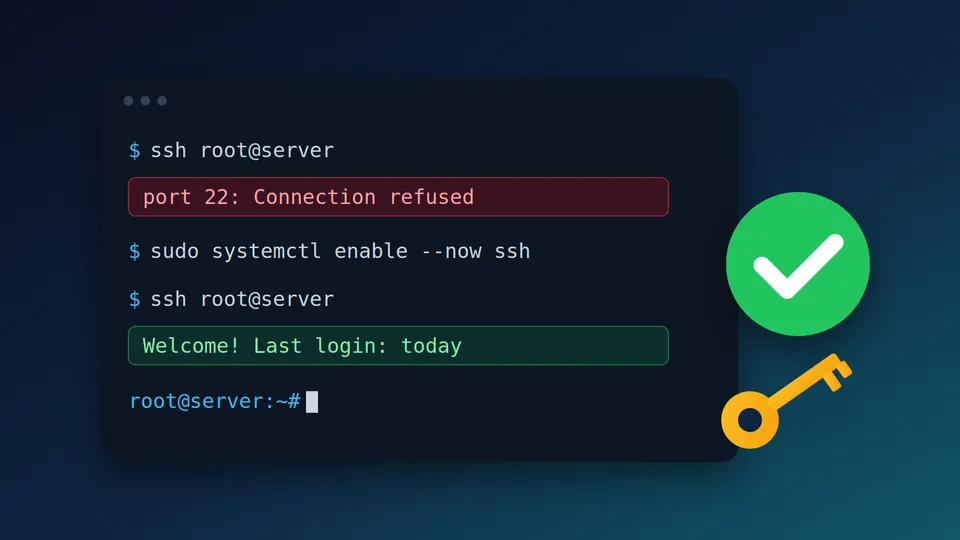
You type the usual command to log in to your server, press Enter, and get one of these instead of a prompt:
ssh: connect to host 203.0.113.10 port 22: Connection refused
ssh: connect to host 203.0.113.10 port 22: Connection timed out
[email protected]: Permission denied (publickey).
They look alike, but each one points to a different problem. "Connection refused" means the server answered and said no one is listening. "Timed out" means nothing answered at all. "Permission denied" means SSH is working fine, but it doesn't accept the way you're logging in. Find your message below and go straight to its fix.
First, Ask SSH What Went Wrong
Run the same command with -v (verbose). It prints every step of the connection, and the last few lines usually say exactly where it stopped:
ssh -v [email protected]Look for lines like Connecting to ... port 22, Offering public key and Authentications that can continue. Keep this output open while you work through the steps; it will save you a lot of guessing.
How to Fix "Connection Refused" on Port 22
Your request reached the server, but nothing accepted it on that port. There are four usual reasons.
1. The server isn't ready yet
Right after you create, reboot or reinstall a VPS, it can take a minute or two before SSH starts. If the server is brand new or was just reinstalled, wait two minutes and try again before changing anything.
2. The SSH service is stopped
If you can't log in over SSH, open the web console in your VPS control panel, log in there, and check the service. On Ubuntu and Debian it's called ssh; on AlmaLinux, Rocky Linux and CentOS it's sshd:
sudo systemctl status ssh
sudo systemctl enable --now ssh
If it refuses to start, test the configuration file. A single typo in sshd_config is enough to keep SSH down, and this command tells you the line:
sudo sshd -tIf OpenSSH isn't installed at all (some minimal images ship without it), install it with sudo apt install openssh-server or sudo dnf install openssh-server.
3. SSH listens on a different port
Maybe you, or a setup script, moved SSH off port 22. Check which port it really uses:
sudo ss -tlnp | grep sshIf it shows :2222, connect with that port:
ssh -p 2222 [email protected]On Ubuntu 22.10 and newer, including 24.04, SSH is started by ssh.socket. If you changed the Port line and nothing happened, that's why. Apply it like this:
sudo systemctl daemon-reload
sudo systemctl restart ssh.socket
4. A firewall rejects the connection
A firewall set to "reject" gives you "Connection refused"; one set to "drop" gives you a timeout. Either way, make sure the SSH port is open:
# Ubuntu / Debian (UFW)
sudo ufw allow OpenSSH
sudo ufw status

# AlmaLinux / Rocky Linux (firewalld)
sudo firewall-cmd --permanent --add-service=ssh
sudo firewall-cmd --reload
If you moved SSH to another port, open that port instead, for example sudo ufw allow 2222/tcp.
How to Fix "Connection Timed Out"
A timeout means your request never got an answer. Check these in order:
- The IP address. Copy it again from your control panel. A wrong digit is more common than you'd think.
- Is the server running? A stopped, suspended or still-installing server doesn't answer. Check its status in your panel.
- A firewall that drops packets. Same fix as above: allow the SSH port.
- You were banned. Too many failed logins and Fail2ban blocks your IP for a while. From the web console, check and unban yourself:
sudo fail2ban-client status sshd
sudo fail2ban-client set sshd unbanip YOUR_IP- Your own network. Some office, school and hotel networks block outgoing port 22. Try from your phone's hotspot. If that works, the block is on your side, and moving SSH to a port like 443 or 2222 gets around it.
How to Fix "Permission Denied (publickey)"
Good news: the connection works, so the server is up and the port is open. The server just won't accept your login. Here are the causes, most common first.
Wrong username
Some servers don't allow root to log in, and many cloud images come with their own default user. Try the one your OS uses: root, ubuntu, debian, almalinux or rocky.
Your key isn't being offered
In the ssh -v output, look for Offering public key. If your key isn't listed, point SSH to it:
ssh -i ~/.ssh/id_ed25519 [email protected]Make sure it's the private key (no .pub at the end) that matches the public key you added to the server.
Permissions on the server are too open
SSH ignores your key if ~/.ssh or authorized_keys can be written by other users. Log in through the web console and fix them for the user you're connecting as:
chmod 700 ~/.ssh
chmod 600 ~/.ssh/authorized_keys
chown -R $USER:$USER ~/.ssh
While you're there, check the key is on a single line in authorized_keys. Pasting it often breaks it into several lines, and then it never matches.
Password login is switched off
If you're trying to log in with a password and get Permission denied (publickey), the server only accepts keys. On Ubuntu, a file in /etc/ssh/sshd_config.d/ often switches passwords off even when the main file says yes. Check what SSH really uses:
sudo sshd -T | grep -Ei 'passwordauthentication|permitrootlogin'The safest fix is to add your key rather than turn passwords back on. If you do need passwords, set PasswordAuthentication yes in the file that overrides it (often 50-cloud-init.conf), then run sudo systemctl restart ssh. And if PermitRootLogin says prohibit-password, root can only log in with a key.
Your private key is too open on your own computer
If you see WARNING: UNPROTECTED PRIVATE KEY FILE!, SSH refuses to use the key. Fix it on your computer:
chmod 600 ~/.ssh/id_ed25519An old RSA key
Newer OpenSSH versions turned off the old ssh-rsa signature. If the verbose output mentions no mutual signature algorithm, the simplest fix is a modern key. Create one and add the .pub file to the server:
ssh-keygen -t ed25519"REMOTE HOST IDENTIFICATION HAS CHANGED!"
You'll see this big warning after you reinstall your VPS or get a new server on the same IP. The server has a new identity, and your computer still remembers the old one. If you know you reinstalled it, remove the old entry and connect again:
ssh-keygen -R 203.0.113.10If you didn't change anything on the server, stop and find out why before you accept the new key.
Locked Out Completely? Use the Web Console
Even when SSH is dead, you can still get in. Your VPS control panel has a web console that works like a screen and keyboard plugged into the server, with no SSH involved. Log in there with your root password, fix the service, firewall or key, and then try SSH again.
One more cause worth knowing: if the disk is completely full, logins can fail in strange ways. Run df -h from the console, and if / is at 100%, follow our guide to fixing "No space left on device" first.
Don't Lock Yourself Out Next Time
- Keep a second session open when you change SSH or firewall settings. If the change breaks something, you still have a way in.
- Test before you restart. Run
sudo sshd -tafter every edit. No output means the file is fine. - Open the new port first, then move SSH to it. Doing it the other way round is the classic lockout.
- Use keys, not passwords, and add Fail2ban so bots can't keep guessing.
Quick Checklist
ssh -vto see where the connection stops.- Refused: SSH stopped, wrong port, or a firewall rejecting it.
- Timed out: wrong IP, server off, firewall dropping packets, a ban, or your own network.
- Permission denied (publickey): wrong user, key not offered, file permissions, or passwords switched off.
- Host identification changed:
ssh-keygen -Rafter a reinstall. - Locked out: fix it from the web console.
Need a fresh server to practise on? Every Ubuntu VPS, Debian VPS, AlmaLinux VPS and Rocky Linux VPS from NodexVPS comes with full root SSH access and a web console for the day something goes wrong.