Certbot Renew Failed? How to Fix Let's Encrypt Renewal (and Get Ready for 64-Day Certificates)
Your SSL certificate expired and Let's Encrypt no longer emails a warning. Here's how to find out why Certbot couldn't renew, fix each error it prints on Nginx or Apache, and make sure the switch to 64-day certificates in 2027 doesn't catch you out.
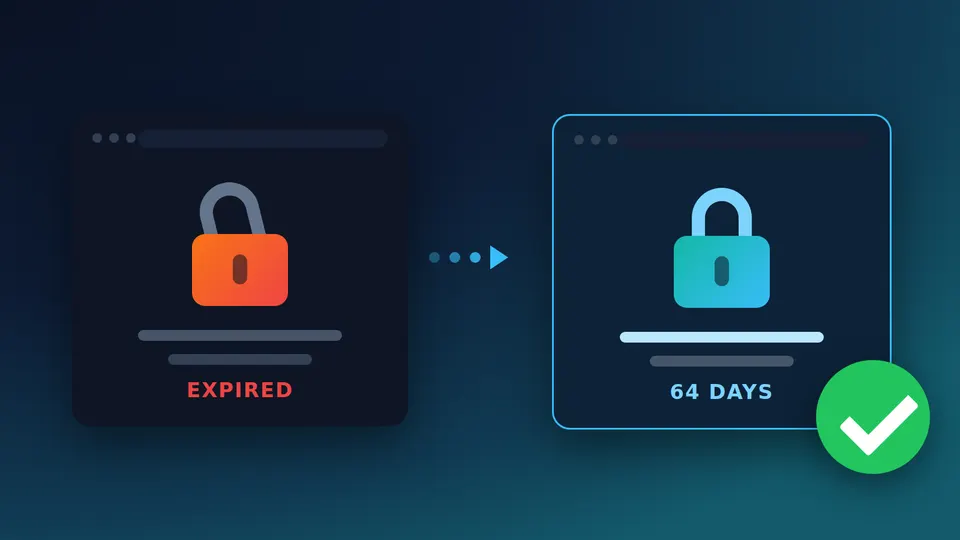
Nobody notices an SSL certificate until it runs out. Then a visitor tells you the site shows "Your connection is not private", or Chrome greets you with NET::ERR_CERT_DATE_INVALID, and you find out the hard way that the automatic renewal you set up months ago stopped working some time back.
It used to be harder to miss. Let's Encrypt emailed you a few weeks before a certificate expired, but it stopped sending those emails in June 2025. Since then the only warning many site owners get is the broken padlock.
The timing is about to matter even more. From 10 February 2027, Let's Encrypt certificates will last 64 days instead of 90, and 45 days from 2028. A renewal that fails quietly will take your site down sooner, so it's worth fixing properly now. This guide goes through the errors Certbot actually prints, what each one means and how to fix it on Ubuntu or Debian with Nginx or Apache.
First, Make Certbot Show You the Error
Don't wait for the next automatic run. Ask Certbot to do a practice renewal right now:
sudo certbot renew --dry-runA dry run talks to Let's Encrypt's test servers, so you can run it as often as you like without touching your real certificates or hitting rate limits. If it ends with Congratulations, all simulated renewals succeeded, renewal itself works and your problem is further down (see "Renewed, but the Site Still Shows the Old Certificate" and "Check That Renewal Runs on Its Own").
If it fails, Certbot prints a block like this one:
Certbot failed to authenticate some domains (authenticator: nginx). The Certificate Authority reported these problems:
  Domain: example.com
  Type:   connection
  Detail: 203.0.113.10: Fetching http://example.com/.well-known/acme-challenge/kX3...: Timeout during connect (likely firewall problem)
Older Certbot versions put it more briefly: Some challenges have failed. Either way, the Type and Detail lines are the clue. The full story is always in the log:
sudo tail -n 60 /var/log/letsencrypt/letsencrypt.logTo understand the errors, it helps to know what Let's Encrypt is checking. Before it renews, it asks your server to put a small file at http://your-domain/.well-known/acme-challenge/. Then it fetches that file from the internet, over plain HTTP on port 80. If it can't reach your server, reaches the wrong one, or gets the wrong reply, the renewal fails. Almost every error below is one of those three.
| What Certbot says | What it usually means |
|---|---|
Timeout during connect (likely firewall problem) | Port 80 is closed in the firewall |
Invalid response from ... 404 | The challenge file isn't where Let's Encrypt looks for it |
DNS problem: NXDOMAIN looking up A | The domain doesn't point anywhere, or not here |
Could not bind TCP port 80 because it is already in use | Standalone mode is fighting your web server for port 80 |
too many certificates (5) already issued | You hit a rate limit from repeated attempts |
| Renewal succeeds, browser still shows the old date | The web server was never reloaded |
"Timeout During Connect": Port 80 Is Blocked
This is the one that catches people out most often, usually because someone tidied the firewall months after the certificate was first issued. "We only serve HTTPS, so port 80 can go." But Let's Encrypt checks over port 80, even for sites that redirect everything to HTTPS.
Check UFW:
sudo ufw statusIf you don't see 80 (or Nginx Full / Apache Full) in the list, open it:
sudo ufw allow 80/tcp
sudo ufw allow 443/tcp
Then check that something is really listening on port 80:
sudo ss -tlnp | grep ':80 'No output means your web server isn't listening on port 80 at all. Add a plain listen 80; server block for the domain. It can simply redirect to HTTPS. If you use another firewall on top of UFW, open port 80 there as well. Our guide to setting up a firewall on Ubuntu shows a sensible set of rules.
"Invalid Response ... 404": The Challenge File Can't Be Found
Let's Encrypt reached your server, but your server answered "not found". Something is sending the request to the wrong place. The usual suspects:
- The site moved. You changed the document root or put the site behind a Node.js or Docker app, but Certbot still writes the challenge file to the old
webroot_path. - A catch-all rule grabs the request. A
location /that sends everything to an app, or a WordPress or framework rewrite, answers/.well-known/acme-challenge/itself with a 404. - A redirect points somewhere else. Redirecting HTTP to HTTPS is fine, because Let's Encrypt follows it. Redirecting to a different domain or server that doesn't have the file is not.
Look at how Certbot was told to renew this certificate:
sudo cat /etc/letsencrypt/renewal/example.com.confThe authenticator line says nginx, apache, webroot or standalone. If it's webroot, check that webroot_path still exists and is the folder your web server really serves. On Nginx, the safest fix is to give the challenge path its own location in the port 80 server block, before any redirect:
server {
    listen 80;
    listen [::]:80;
    server_name example.com www.example.com;

    location ^~ /.well-known/acme-challenge/ {
        root /var/www/letsencrypt;
        default_type "text/plain";
    }

    location / {
        return 301 https://$host$request_uri;
    }
}
sudo mkdir -p /var/www/letsencrypt
sudo nginx -t && sudo systemctl reload nginxThen tell Certbot about the new folder. The reconfigure command updates the renewal settings without issuing a new certificate:
sudo certbot reconfigure --cert-name example.com --webroot -w /var/www/letsencryptIf your site is a normal Nginx or Apache site with no app in front, switching to the matching plugin is even simpler. It edits the config for the challenge and reloads the server by itself:
sudo certbot reconfigure --cert-name example.com --nginx
# or
sudo certbot reconfigure --cert-name example.com --apache
Run sudo certbot renew --dry-run again afterwards. You can test the path yourself, too: put a file in it, then try curl http://example.com/.well-known/acme-challenge/test.txt from your own computer, not from the server.
"DNS Problem": The Domain Doesn't Point Here
An error such as DNS problem: NXDOMAIN looking up A for example.com means the name doesn't resolve at all. It's often a www or other subdomain that was in the certificate but got deleted from DNS later. Check what the world sees:
dig +short A example.com
dig +short AAAA example.com
curl -4 ifconfig.me
The first two should show your server's addresses, and the A record should match what the last command prints. Fix the records at your DNS provider. If a name in the certificate is gone for good, drop it from the certificate rather than leaving it to fail on every renewal. Our domain DNS guide explains the records if you need a refresher.
The forgotten IPv6 record
This one is easy to miss. If the domain has an AAAA record, Let's Encrypt prefers IPv6. When that record points to an old server, the check reaches the wrong machine and fails, even though everything over IPv4 looks perfect. Either delete the stale AAAA record, or, if this server really has that IPv6 address, make sure the web server answers on it with listen [::]:80; next to listen 80;, as in the block above.
Domains behind a CDN
If your domain goes through a CDN or proxy, the validation request reaches the CDN first. HTTP validation usually still works as long as the CDN passes /.well-known/acme-challenge/ through to your server without forcing a redirect loop. If it doesn't, either pause the proxy for the domain, or use DNS validation with your DNS provider's Certbot plugin, which never touches port 80.
"Could Not Bind TCP Port 80": Standalone Mode Clashes With Your Web Server
If the certificate was first issued with --standalone, Certbot starts its own little web server on port 80 to answer the check. That worked on day one, before Nginx or Apache was installed. Now the port is taken, and every renewal fails with:
Could not bind TCP port 80 because it is already in use by another process on this system (such as a web server).Don't kill the web server every couple of months by hand. Switch the certificate to the Nginx or Apache plugin with certbot reconfigure as shown above, and the clash disappears for good. If you really must keep standalone, stop and start the web server around the renewal with hooks:
sudo certbot reconfigure --cert-name example.com \
  --pre-hook "systemctl stop nginx" --post-hook "systemctl start nginx"
To see which program is holding the port, run sudo ss -tlnp | grep ':80 '. Our guide on how to kill a process in Linux covers the rest.
"Too Many Certificates Already Issued": You Hit a Rate Limit
too many certificates (5) already issued for this exact set of identifiers in the last 168h0m0sThis one is usually caused by the fixing itself. Each real attempt that issues a certificate counts, so trying again and again without --dry-run can lock you out of that exact set of names for up to a week. There's no way to reset it. Wait for the time shown in the message, and do all your testing with --dry-run from now on. If your current certificate is about to expire meanwhile, a certificate for a slightly different set of names (adding or removing www, for example) is counted separately.
Renewed, but the Site Still Shows the Old Certificate
Certbot says everything renewed, sudo certbot certificates shows a fresh expiry date, but the browser still shows the old one. The web server is still holding the old certificate in memory. It loads certificates when it starts or reloads, and nothing told it to reload.
The Nginx and Apache plugins reload for you. With webroot or standalone, add a deploy hook. It runs only after a successful renewal:
sudo sh -c 'printf "#!/bin/sh\nsystemctl reload nginx\n" > /etc/letsencrypt/renewal-hooks/deploy/reload-nginx.sh'
sudo chmod +x /etc/letsencrypt/renewal-hooks/deploy/reload-nginx.sh
Use systemctl reload apache2 for Apache. If something else uses the certificate too, like a mail server, a Node.js app or a database, reload it in the same script. Also check that your config points to /etc/letsencrypt/live/example.com/fullchain.pem and not to a copy you made once in a different folder. A copy never gets updated.
Check That Renewal Runs on Its Own
A dry run that works only proves renewal can work. You also need something that runs it. On Ubuntu and Debian that's a systemd timer, and its name depends on how Certbot was installed:
systemctl list-timers | grep -i certbotYou should see certbot.timer (the apt package) or snap.certbot.renew.timer (the snap). Both run twice a day and renew only the certificates that are due. If neither shows up, turn on the one that matches your install:
sudo systemctl enable --now certbot.timer
# for the snap version:
sudo systemctl enable --now snap.certbot.renew.timer
Then look at what happened on the last runs:
sudo journalctl -u certbot.service -n 30
# for the snap version:
sudo journalctl -u snap.certbot.renew.service -n 30
Two Certbots on one server
A common mess after a server has been upgraded a couple of times: Certbot was installed from apt once and from snap later, or with pip. Then the timer runs one copy while you test with the other. Odd Python errors after an Ubuntu upgrade are often a sign of this. Check how many there are:
which -a certbotIf you see more than one, keep one way of installing Certbot, remove the other, and run the dry run again. Your certificates in /etc/letsencrypt stay where they are either way.
Getting Ready for 64-Day Certificates
Most servers with a working Certbot timer won't notice the change on 10 February 2027. The timer checks twice a day, and Certbot renews well before expiry. The servers that will get caught are the ones with home-made shortcuts. Look for these now:
- Cron jobs written for 90 days. Something like "renew on the 1st of every other month" worked with 90-day certificates. With 64-day certificates it lets them expire. Use the timer, or a daily
certbot renew, never a fixed long interval. - Hardcoded numbers. Search your scripts and runbooks for 60, 80, 83 or 90 days. Let's Encrypt itself warns about scripts that assume these lifetimes. Also check
renew_before_expiryin the files under/etc/letsencrypt/renewal/. A value close to the full lifetime makes Certbot try to renew on every run, and you'll hit rate limits. - Alerts that panic too early. A monitor that warns at "less than 30 days left" is fine today. With 45-day certificates in 2028 it will alarm all the time. Warn at about a week before expiry instead, which still leaves time to act.
- Validation that only works sometimes. Let's Encrypt is also shortening how long a successful domain check can be reused, so almost every renewal will have to pass the check again. A firewall rule or redirect that "usually" lets the check through won't be good enough.
- Old Certbot versions. Keep Certbot updated so it follows Let's Encrypt's current renewal advice. The snap version updates itself. With apt, updates come with your normal system upgrades.
Watch the Expiry Date Yourself
With no warning emails any more, don't rely on renewal alone. This one-liner shows the expiry date of the certificate your site really sends to visitors, which is what matters:
echo | openssl s_client -connect example.com:443 -servername example.com 2>/dev/null | openssl x509 -noout -enddatePut it in a small daily cron script that warns you when fewer than 7 days are left:
#!/bin/sh
DOMAIN=example.com
if ! echo | openssl s_client -connect "$DOMAIN:443" -servername "$DOMAIN" 2>/dev/null \
    | openssl x509 -noout -checkend 604800 >/dev/null; then
  echo "SSL certificate for $DOMAIN expires within 7 days" | logger -t ssl-check
  # send it to email, Slack or Telegram here
fi
Uptime Kuma, a self-hosted monitor you can install on a small server, can also warn you about expiring certificates on every site you watch, with no scripts at all.
Running Your Site in Docker?
- Traefik or Caddy get and renew certificates themselves. When renewal fails, the reason is in their log:
docker logs traefik 2>&1 | grep -i acme. With Traefik, a classic cause is theacme.jsonfile having the wrong permissions. It must bechmod 600, or Traefik refuses to use it. - A Certbot container next to an Nginx container needs two things: something that runs
certbot renewon a schedule, and a reload of the Nginx container after each renewal, for exampledocker compose exec nginx nginx -s reloadin a deploy hook. - Port 80 must still reach the container that answers the check, so keep
80:80published on whichever container does it.
Quick Checklist
sudo certbot renew --dry-run, then read/var/log/letsencrypt/letsencrypt.log.- Timeout: open port 80 in UFW and make sure the web server listens on it.
- 404: fix the challenge path or the webroot, or switch to the
--nginx/--apacheplugin withcertbot reconfigure. - DNS problem: fix the A record, remove stale AAAA records and drop names you no longer use.
- Port 80 in use: move away from
--standalone. - Rate limit: wait it out and test only with
--dry-run. - Old certificate still showing: add a deploy hook that reloads the web server.
- Confirm the timer runs, use only one copy of Certbot and watch the expiry date yourself.
Once these are sorted, a renewal is something that happens every couple of months without you ever thinking about it, which is how it should be. If you're starting a new site, a website VPS or Ubuntu VPS from NodexVPS gives you full root access to set all of this up your way. Certbot is also one of the apps you can choose when you order. And if a renewal ever breaks the site behind Nginx, our guide to fixing 502 Bad Gateway is the next stop.